

 By
By Introduction
The Surface laptop series is renowned for its seamless design and powerful performance, but a common issue — the yellow-tinted screen — can taint this experience. This issue not only affects the screen’s clarity but also compromises the vibrant colors users expect from these devices. By identifying the cause and following the right steps to fix it, users can restore their laptop displays to optimum quality. In this comprehensive guide, we will explore why this problem occurs and how to resolve it, ensuring your device’s display remains crystal clear.
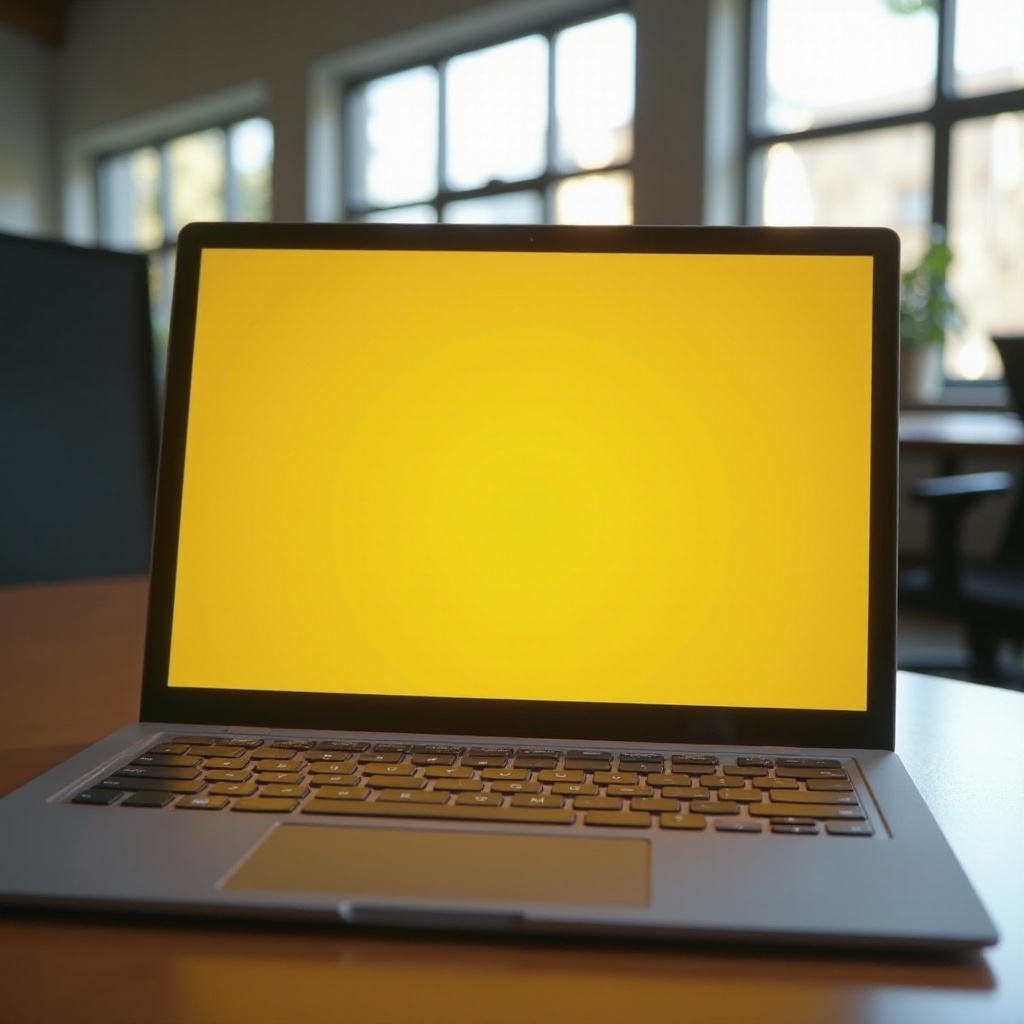
Understanding the Yellow Screen Phenomenon
A yellow screen issue can disrupt the visual experience on your Surface laptop, raising the question: what causes it? This yellow tint may arise from incorrect color profile settings, outdated drivers, or poorly configured display settings. Recognizing the potential source of the problem is crucial for effective intervention. Let’s delve into these causes to better understand the issue and equip you to address it.
Often, software updates or incorrect installations might lead to disrupted color configurations. Furthermore, energy-saving modes could lower brightness and alter color accuracy, intensifying the color shift. With this foundational understanding, we can now explore the common causes behind the surface laptop’s yellow tint.
Common Causes of Yellow Tint on Surface Laptops
Addressing the yellow tint begins with identifying its cause, which typically falls into one of the following categories:
- Display Settings: Incorrectly adjusted settings can skew the color balance, causing the screen to appear yellowish.
- Driver Issues: Using outdated or incompatible display drivers frequently leads to inaccuracies in color display.
- Power Settings: Energy-saving configurations may automatically tweak your screen’s color balance to conserve power, causing the yellow tint.
- Hardware Problems: Rarely, underlying hardware faults can result in display issues.
Knowing these causes equips you to troubleshoot effectively, paving the way for finding appropriate solutions.
Step-by-Step Guide to Troubleshoot Yellow Screen
Having identified possible causes, let’s explore some fixes you can implement to address the yellow screen issue.
- Adjust Display and Color Settings
- Navigate to ‘Settings’ > ‘System’ > ‘Display’.
- Ensure the ‘Night light’ feature is turned off.
-
Under ‘Advanced display settings’, consider calibrating the color settings to enhance accuracy.
-
Update Windows and Device Drivers
- Access ‘Settings’ > ‘Update & Security’ > ‘Windows Update’ to check for and install updates.
-
Ensure your device drivers are up-to-date by visiting the manufacturer’s website.
-
Manage Power and Display Settings
- Go to ‘Settings’ > ‘System’ > ‘Power & sleep’.
- Experiment with different power plans to see if changes affect screen color.
These steps often resolve the problem, but persistent issues may require more in-depth strategies.
Advanced Troubleshooting Strategies
If the yellow screen persists despite basic troubleshooting, consider employing these advanced methods:
- Running Windows Troubleshooter: Locate ‘Settings’ > ‘Update & Security’ > ‘Troubleshoot’, find the Display section, and run the troubleshooter.
- Reverting to Factory Display Settings: Use this feature to reset display settings to default, potentially resolving misalignments.
These measures ensure a robust approach to tackle the lasting yellow tint.
When to Seek Professional Assistance
Should the yellow tint remain after exhausting these steps, a deeper hardware issue might be at play. Here’s what to do next:
- Reach out to Microsoft support for specialized assistance.
- Consult with an authorized repair center for an expert evaluation.
Recognizing the limit of DIY repairs can maintain your Surface laptop’s performance and longevity.

Preventive Measures for Maintaining Screen Quality
To prevent the recurrence of yellow screen issues, consider practicing these preventive measures:
- Regular Software Updates: Consistently look for and install system and driver updates to ensure smooth operation.
- Monitoring Device Health: Utilize both inbuilt diagnostic tools and third-party software for continuous performance evaluations.
Adhering to these practices helps in preserving your device’s display quality and reducing potential screen issues.
Conclusion
Encountering a yellow screen on your Surface laptop can significantly impact your user experience. Promptly addressing it using the steps outlined above can restore the display’s vibrancy and accuracy. It’s vital to keep your system and drivers up-to-date as preventative maintenance. With this guidance, maintaining a pristine display becomes a feasible task.
Frequently Asked Questions
What should I do if my Surface laptop screen is still yellow after troubleshooting?
If issues persist, there may be a hardware fault. Contact Microsoft support or visit a certified repair center for expert advice.
Can a yellow screen indicate a hardware issue on my Surface laptop?
Although rare, a persistent yellow screen can suggest hardware problems such as a faulty display component or connection cable.
How often should I update my Surface laptop to prevent display issues?
Regularly check for updates at least once a month to ensure your operating system and drivers are current, preventing display anomalies.