

 By
By Introduction
Experiencing a computer that won’t post is a common issue that can halt your workflow and cause concern. The ‘Power-On Self-Test’ (POST) is crucial, as it checks the computer’s critical hardware components to prepare it for startup. When this process fails, understanding the reasons behind it and knowing how to address it is essential. Whether you are dealing with a blank screen, beep codes, or error messages, addressing these concerns is a vital step for any computer user.
Understanding the POST Process
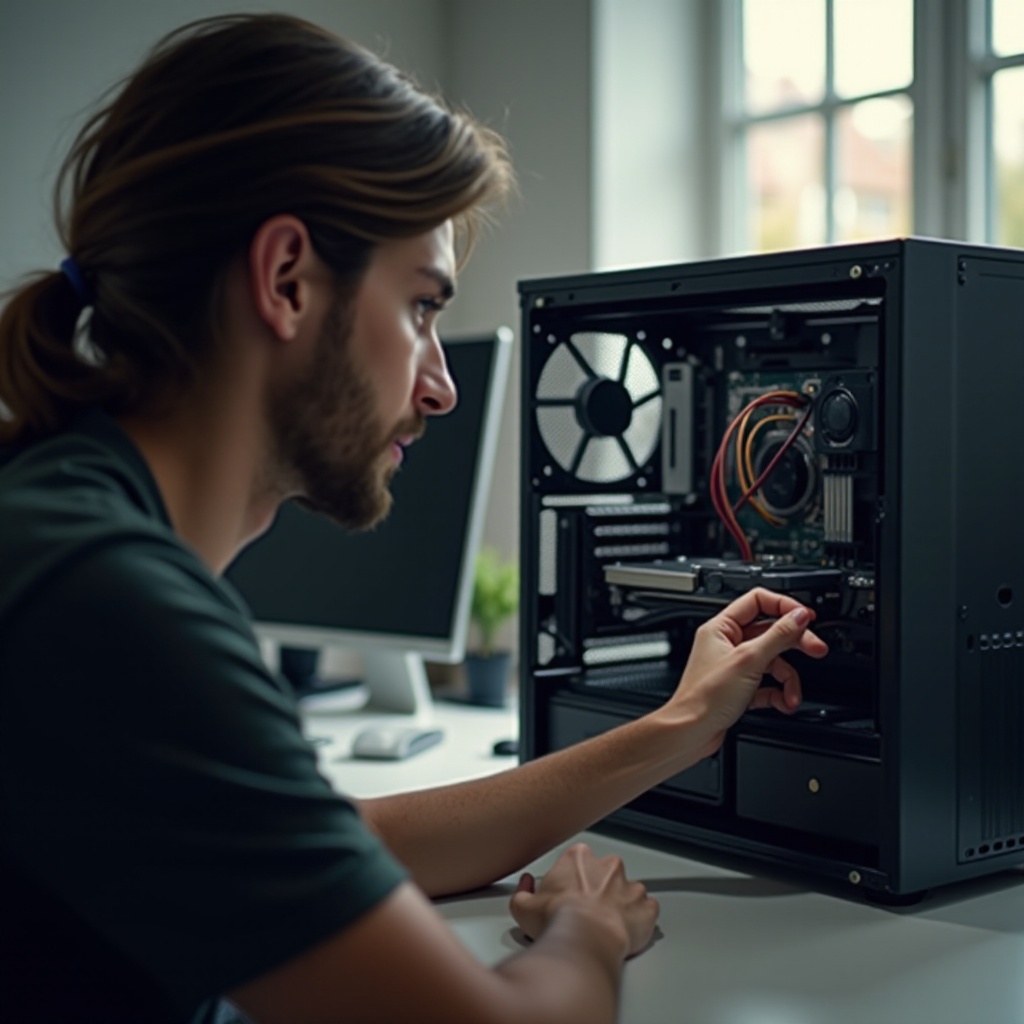
To troubleshoot effectively, understanding the POST process can help. POST is a self-test the BIOS performs to ensure hardware integrity, enabling the computer to boot the operating system.
-
What is POST?
POST stands for Power-On Self-Test, assessing the connected hardware components are intact and running. -
How does POST work?
When powered on, BIOS runs the POST to check components such as the CPU, RAM, and display, using beep codes or on-screen messages to signal errors. -
Importance of POST in the boot sequence
A successful POST signifies that the computer’s hardware is functioning correctly, allowing the boot process to continue smoothly.
Understanding this procedure helps diagnose what might be preventing your computer from completing this critical step.
Diagnosing Common Causes of a Computer Not Posting
Identifying the underlying issue is imperative when the computer fails POST. Here are common problems to investigate:
-
Checking power supply issues
Ensure all power connectors are secure, check for damaged cables, and verify that the power button operates correctly. -
Identifying hardware connection problems
Improperly seated RAM or a loose graphics card can disrupt posting. Double-check that all components are firmly in place. -
Exploring RAM and graphics card issues
Faulty or mismatched RAM and graphics cards often cause POST errors. Replace or test these components separately to confirm their functionality.
Understanding these common issues paves the way for implementing corrective steps more accurately.
Initial Troubleshooting Steps
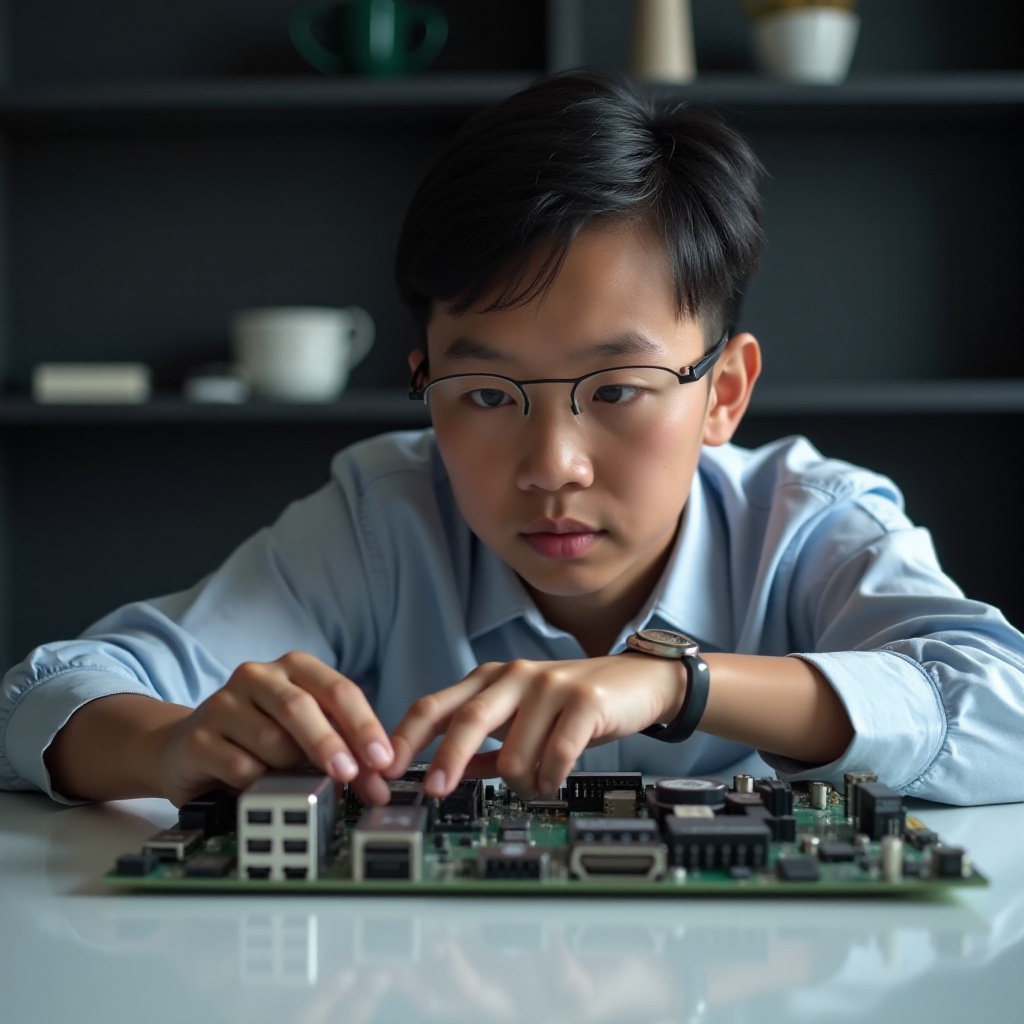
Once you’ve diagnosed potential issues, initiate the following troubleshooting steps:
-
Conduct basic power and cable inspections
Confirm all power cables are properly connected. Try replacing or re-securing cables if necessary. -
Verify hardware connections: reseating and checking components
Remove and reseat RAM and GPUs, ensuring they fit correctly into their slots. -
Minimize hardware configuration for testing
Disconnect all non-essential peripherals. Operate the system using only key components.
Mastering these initial actions often clears straightforward POST hiccups, guiding you to a solution quicker.
Advanced Troubleshooting Techniques
If problems persist, employ advanced methods:
-
Testing RAM and graphics card functionality
Swap RAM sticks or use an alternate graphics card to check for failures. Utilize tools like Memtest86 for in-depth RAM testing. -
Running diagnostic tests and understanding beep codes
Refer to the motherboard manual to decipher beep codes or LED signals that indicate hardware failures. -
Investigating BIOS/firmware issues
Reset or upgrade the BIOS by following the manufacturer’s guidelines to remedy corrupted or outdated firmware.
Exploring these advanced solutions can provide clarity on persistent POST concerns, enabling a more systematic repair approach.
When to Consult Professional Help
While many fixes can be attempted at home, some situations require professional intervention:
-
Recognizing complex hardware problems
If there is a suspicion of CPU or memory slot damage, it is best to seek professional diagnostics to avoid further harm. -
Effective communication with a technician
Clearly explain the steps you’ve attempted and any persistent symptoms, facilitating a faster diagnosis. -
Preparing your computer for service
Make sure the device is accessible for service, and consider backing up essential data, if feasible, to mitigate data loss during repairs.
When DIY adjustments fail, turning to expert assistance is a prudent choice to minimize prolonged issues or potential damage.

Preventative Measures to Avoid Future POST Issues
Regular upkeep improves your computer’s resilience to POST problems:
-
Regular hardware maintenance tips
Clean internal components regularly to ensure proper airflow and prevent overheating-related failures. -
Keeping BIOS/firmware updated
Stay attuned to manufacturer updates to combat hardware bugs and maintain optimal performance. -
Tips for safe hardware changes and upgrades
Verify component compatibility and use antistatic precautions to avoid causing damage.
Incorporating thorough preventative measures can sharply reduce the likelihood and impact of future POST complications.
Conclusion
Addressing ‘computer not posting’ issues is often manageable with the right approach. By understanding the POST process, identifying causes, and employing comprehensive troubleshooting steps, you can typically resolve these problems efficiently. Employ preventative maneuvers as well to maintain system reliability and performance.
Frequently Asked Questions
Why does my computer turn on but not boot?
This points to a POST failure. Check power connections and hardware components for issues.
What are the first things to check if my computer isn’t posting?
Start with verifying all power cables and ensure that all hardware is securely connected.
How can I tell if my motherboard is the problem?
Listen for beep codes indicating hardware failures and confirm the motherboard shows power but does not boot.