

 By
By Introduction
Chromebook users often encounter screen glitches that disrupt their experience. These issues range from flickering displays to complete blackouts. Addressing screen glitches quickly is crucial to maintaining productivity and extending the lifespan of your device. This guide provides insights and solutions to help troubleshoot and prevent screen glitches on your Chromebook effectively.
Understanding Chromebook Screen Glitches
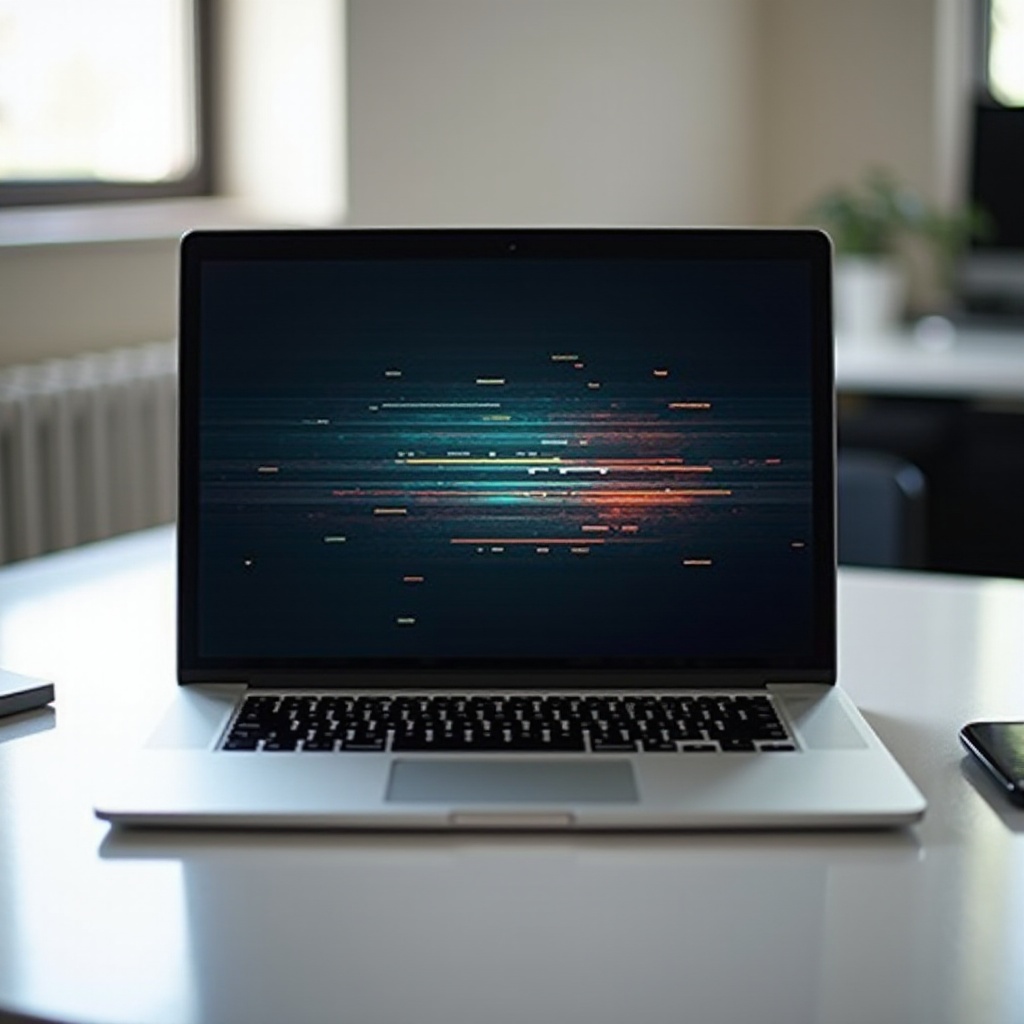
Screen glitches on Chromebooks can manifest in several forms, including lines across the screen, sporadic flickers, or total blackouts. Understanding these manifestations helps in diagnosing and targeting the underlying causes more effectively. Knowing what to look for is the first step in identifying whether the root cause is related to software or hardware.
Common Causes of Screen Glitching on Chromebooks
Software-Induced Issues
Software glitches are a frequent cause of screen problems. They often result from outdated Chrome OS, buggy apps, or corrupted system files. Keeping your software up-to-date is a simple yet effective way to avoid such issues.
Hardware Malfunctions
Issues such as loose connections or damaged components can lead to significant display problems. While these are less common than software issues, they often require more intensive solutions, sometimes requiring professional repair services.
User Configuration Errors
Incorrect display settings and other user-configurable options can sometimes lead to screen glitches. These errors might result from both deliberate changes and unintended alterations made by applications.
Understanding these causes provides a framework for the troubleshooting steps discussed in the following sections.
Basic Troubleshooting Techniques
Simple troubleshooting steps can resolve many Chromebook screen issues, allowing you to quickly get back to work.
1. Restart Your Chromebook: This fundamental action can resolve temporary glitches, resetting the system setup.
2. Perform a Powerwash: A factory reset can eliminate persistent, software-related glitches. Remember to back up important data before proceeding.
3. Update Chrome OS: Regular updates to your operating system are vital for maintaining system integrity and performance.
Advanced Troubleshooting Methods
If basic steps don’t solve the problem, employ the following advanced troubleshooting techniques.
Adjust Display Settings
Check and modify your display settings, such as resolution and scaling options, to see if it resolves the glitching issue. Sometimes, mismatched settings are the root cause of display problems.
Inspect Hardware Connections
For those comfortable with hardware, inspect the device’s physical connections. Loose cables or damaged components can often be the source of screen glitches. Handle these components with care to avoid voiding your warranty.
Utilize Chromebook Recovery Utility
If all else fails, try the Chromebook Recovery Utility. This tool reinstates the operating system, addressing potential software corruption issues without needing hardware modifications.
Connecting these troubleshooting methods ensures that you cover both immediate and longer-term fixes.
Preventing Future Screen Glitches
After resolving current issues, adopt preventive measures to minimize future screen glitches.
Regular Maintenance Tips
Perform regular maintenance, such as clearing the browser cache, removing unused apps, and managing storage, to ensure your system functions optimally.
Safe Software Practices
To safeguard your system against software-induced glitches, adopt safe browsing habits and only install trusted apps. Regularly check for updates and manage permissions wisely.
When to Seek Professional Assistance
When troubleshooting fails to resolve the screen glitches, and hardware issues are suspected, it may be time to consult a professional technician. They can diagnose and repair more severe issues without causing additional damage to your device. Always check your warranty status before proceeding with external repairs.
Conclusion
Addressing Chromebook screen glitches effectively requires a mix of understanding potential causes and applying both basic and advanced troubleshooting techniques. Prevention is just as important as fixing the current problem to ensure your Chromebook remains in peak condition. When in doubt, opt for professional assistance to avoid compounding issues.
Frequently Asked Questions
Why does my Chromebook screen flicker intermittently?
Intermittent flickering is often due to outdated software, loose connections, or incompatible apps. Ensuring your system is updated and checking hardware connections can typically resolve this issue.
How can I tell if my screen glitch is a hardware issue?
If basic troubleshooting fails and glitches are accompanied by physical damage or continuous display failures, it’s likely a hardware issue. Seek professional evaluation if unsure.
Are screen glitches covered under Chromebook warranties?
Most manufacturer warranties cover hardware defects, including screen glitches, unless the damage is user-inflicted. Check your warranty terms for specific coverage details.