

 By
By Introduction
The Xbox Series S, known for its sleek design and outstanding performance, remains a favorite among gamers. Despite its compact size compared to its sibling, the Series X, the Series S offers impressive features that cater to modern gaming demands. One critical aspect that can enhance your experience is understanding the USB port configuration. Knowing how to leverage these ports can significantly elevate your console’s capabilities, making your gaming sessions even more enjoyable.
USB Ports on the Xbox Series S: A Detailed Look
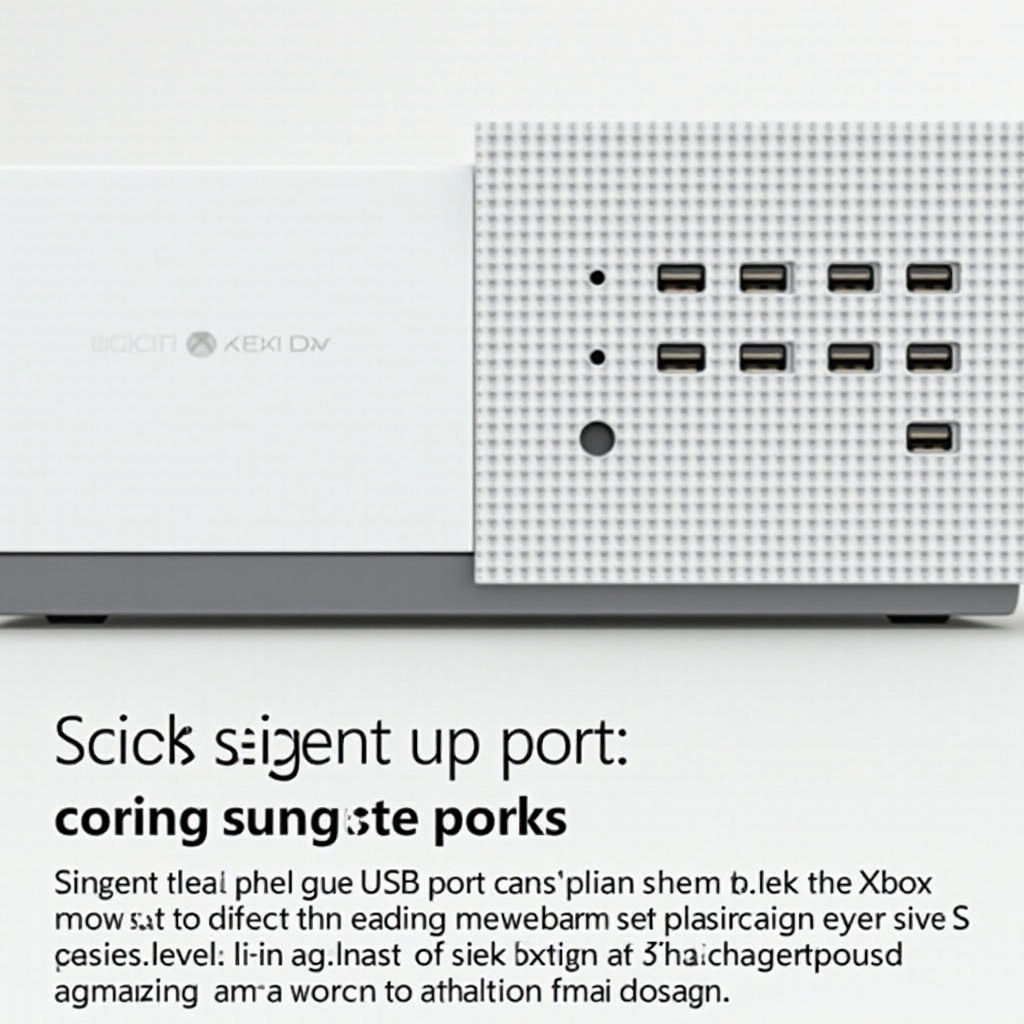
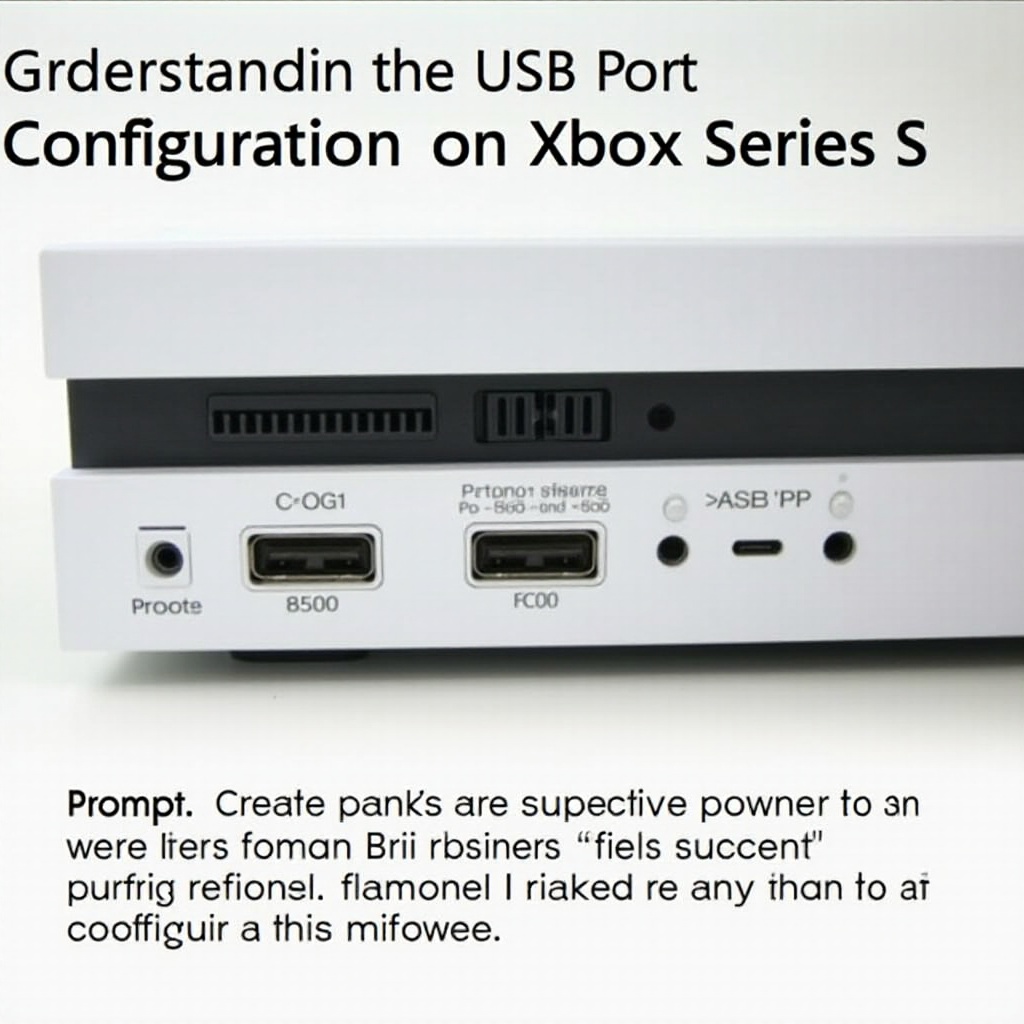
The Xbox Series S is equipped with three USB 3.1 ports. This includes two at the rear and a conveniently placed one at the front of the console. This arrangement supports quick access whether your console is positioned vertically or horizontally, ensuring compatibility with an array of devices.
These USB 3.1 ports are backward compatible. This means you can connect USB 3.0 and 2.0 devices with ease. For gamers, this flexibility is crucial in connecting controllers, storage solutions, and other gaming peripherals, thereby enhancing the overall setup. The strategic design and placement of these ports show how Microsoft has thoughtfully integrated them to expand the console’s functionality and address various gaming needs.
Enhancing Your Gaming Setup with USB Connectivity
USB connectivity on the Xbox Series S is a gateway to enhanced gaming experiences. By utilizing these ports, you unlock a wide range of functionality from connecting peripherals to expanding storage space. Here’s how you can maximize the potential of your Xbox Series S USB ports:
- Controller Connection and Charging: Keep your controllers charged and connected seamlessly using the USB ports.
- External Storage Devices: Attach external hard drives or SSDs to the USB 3.1 ports for more storage, enabling you to store more games.
- Peripheral Devices: Connect headsets, keyboards, and other USB-compatible peripheral devices for a more immersive gaming experience.
By understanding and effectively using these ports, you can significantly enhance your gaming setup, creating an environment that supports and maximizes the console’s capabilities.
Comparing Xbox Series S USB Ports with Other Consoles
While the Xbox Series S offers an efficient USB port configuration, it is informative to explore how it stands against other consoles like the Xbox Series X, PlayStation, and Nintendo systems. The Series X, for example, includes an additional USB port, totaling four, which provides slight flexibility in connectivity.
In comparison, the PlayStation 5 is also equipped with a broad range of USB port options, each tailored for different types of users. Nintendo Switch, with its focus on portability, approaches USB connectivity differently, emphasizing a hybrid mode. Understanding these comparisons helps gamers choose which console’s connectivity features best match their gaming preferences.
Comprehending how the Xbox Series S holds up against its counterparts in terms of USB connectivity empowers gamers to make well-informed decisions about how to outfit their gaming systems appropriately.
Optimizing USB Port Usage on Xbox Series S
Maximizing the utility of USB ports on your Xbox Series S can transform your gaming experience. Here are some tips:
- Prioritize Key Device Connections: For optimal performance, connect essential devices like controllers and external storage directly.
- Leverage USB Hubs: Need more ports? Use a USB hub to maintain speed and functionality without compromising on connectivity.
- Maintain Connections Regularly: Keep connections secure and ensure cables are damage-free to prevent interruptions during use.
Optimizing USB port usage ensures that your setup is efficient and effective, allowing seamless gaming without the restrictions of limited connectivity. Understanding the capacity and function of each port allows for an expanded, enjoyable gaming experience.
Troubleshooting Common USB-related Issues
Even with perfect setups, gamers may encounter USB connectivity issues on the Xbox Series S. Here are some common problems and solutions:
- Device Not Recognized: Ensure the USB device is properly inserted and is compatible with USB 3.1. Reconnect or switch ports if needed.
- Intermittent Connectivity: Check for damage on cables or switch to a different port or cable. Proper maintenance ensures that connections remain stable.
- Slow Data Transfer: Ensure devices are compatible with USB 3.1 for optimum speeds. Regular console software updates also help improve compatibility and performance.
By addressing these issues promptly, you maintain an uninterrupted gaming experience, enhancing the enjoyment and immersive nature of the Xbox Series S.
Conclusion
The Xbox Series S and its USB port layout significantly contribute to enhancing your gaming setup. By understanding the number, type, and usage of these ports, you can transform your interaction with the console. As you connect more devices and streamline your gaming environment, you unleash the full potential of the Xbox Series S.
Frequently Asked Questions
How many USB ports does the Xbox Series S have?
The Xbox Series S is equipped with three USB 3.1 ports, providing ample connectivity options for a wide range of peripherals.
What can I connect to the USB ports on my Xbox Series S?
You can connect controllers, external storage devices, headsets, keyboards, and other compatible peripherals to the USB ports on your Xbox Series S.
Are the USB ports on the Xbox Series S compatible with all Xbox peripherals?
While most peripherals designed for Xbox are compatible, always check for compatibility with USB 3.1 to ensure optimal performance.