

 By
By Managing your music on your iPhone is essential for a smooth listening experience. Whether you’re looking to have more control over your music library or free up storage, disabling iCloud Music Library might be the right choice. This guide will teach you how to turn off iCloud Music Library, ensuring your music remains accessible and under control.
Introduction
Apple’s iCloud Music Library syncs your music across all Apple devices, providing convenience but sometimes causing issues for users who prefer manual control. Disabling this feature lets you manage your music locally and put a stop to automatic syncing. We’ll explore the details of iCloud Music Library, preparing your device, and how to disable it.
Understanding iCloud Music Library
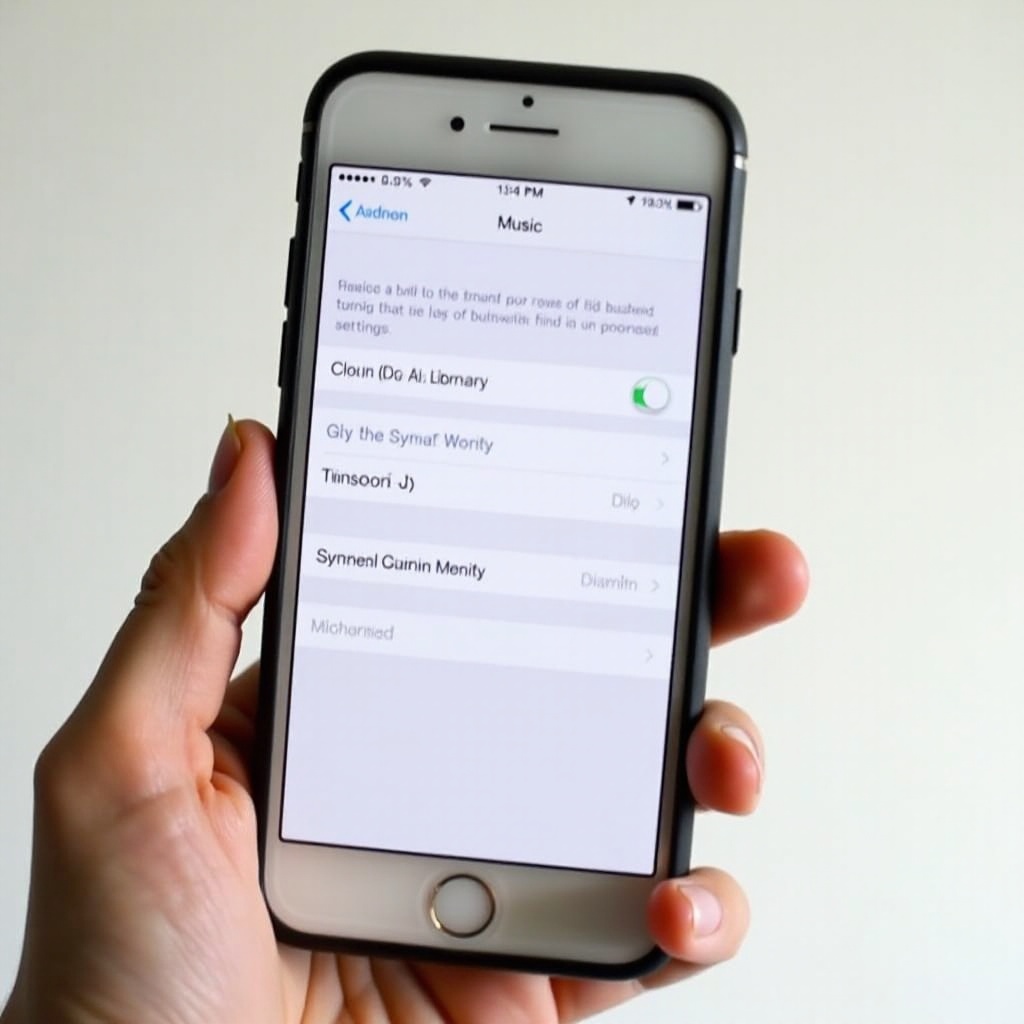
The iCloud Music Library is a key feature for Apple users, offering a unified music library experience through iTunes Match and Apple Music. However, knowing its implications is crucial.
What is iCloud Music Library?
iCloud Music Library collects your music libraries into one accessible library across all Apple devices. It ensures that any song added on one device will appear on others tied to the same Apple ID. This feature can be convenient, but it does come with some drawbacks.
Benefits and Limitations
The benefits include access to your full library across devices, playlist syncing, and offline listening capabilities. However, limitations may include storage issues, song mismatches, or privacy concerns. Users may experience duplications and clutter, prompting some to disable the service.
Preparing Your iPhone for Disabling iCloud Music Library
Before proceeding, ensure your music library is safe and ready for transition by preparing your device adequately.
Backup Your Music
Backing up your music is a critical preparatory step. It safeguards your songs in case something goes wrong.
- Connect your iPhone to your computer.
- Open iTunes and select your device.
- Choose ‘Back Up Now’ to secure your data.
Ensure Your iOS is Updated
Updating your iOS guarantees optimal functionality. Download the latest iOS version before changing settings.
- Go to ‘Settings.
- Select ‘General’ and tap on ‘Software Update.
- Follow on-screen instructions to install any updates.
With a backup and updated software, you are ready for the next stage.
Step-by-Step Guide to Disable iCloud Music Library
Disabling iCloud Music Library is simple and can be achieved by following these steps.
Accessing Your Settings
Start by opening your iPhone’s settings menu to access music library options.
- Unlock your iPhone and tap on the ‘Settings’ icon.
Navigating to the Music Section
Find the Music section where the iCloud Music Library toggle is located.
- Scroll down and select ‘Music.
Toggling Off iCloud Music Library
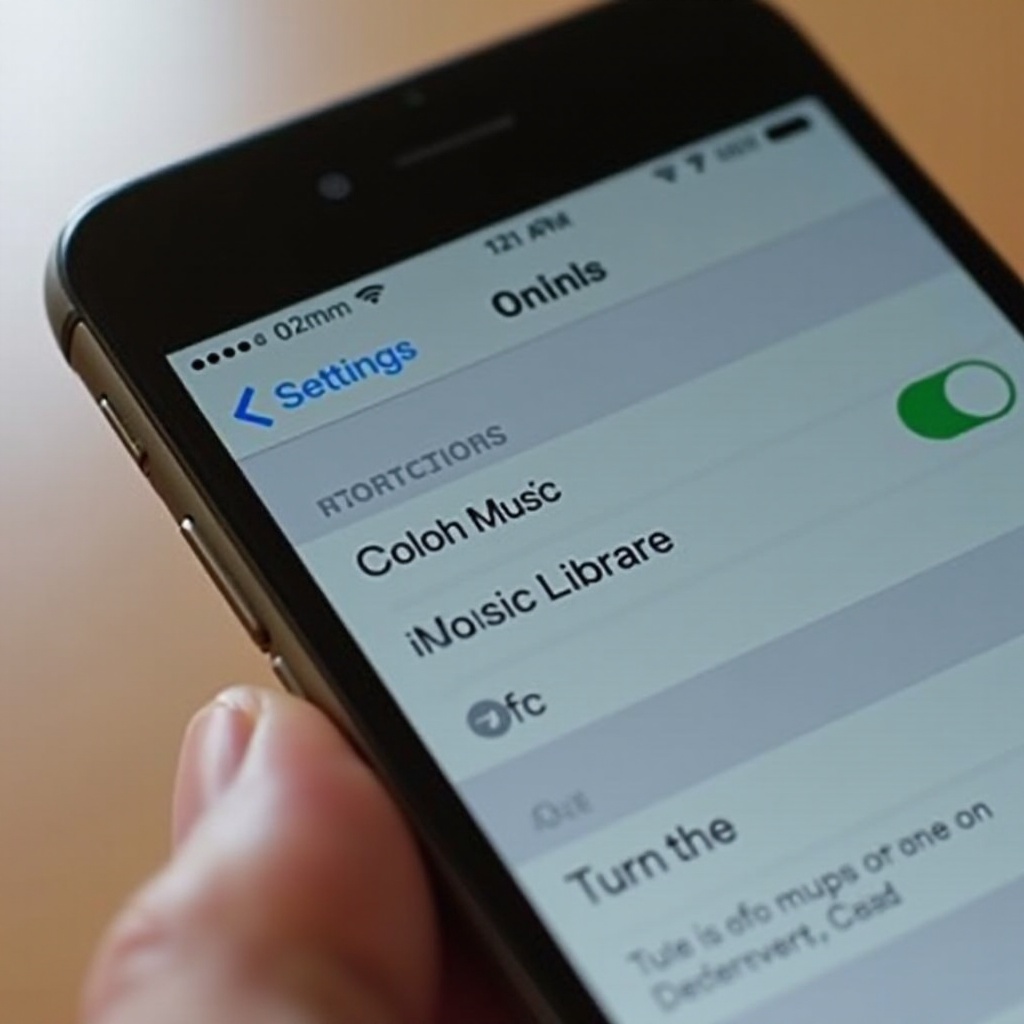
Turn off iCloud Music Library here and gain manual control over your library.
- Locate ‘iCloud Music Library.
- Toggle the switch off to disable the feature.
Once turned off, the iCloud Music Library will cease automatic syncing, offering a personalized management experience.
What Happens After Disabling iCloud Music Library?
Disabling iCloud Music Library alters how your music library behaves, so it’s essential to understand these changes for effective music management.
Effects on Your Music Library
Without the iCloud Music Library, purchased music stays accessible, but syncing across devices is halted. Local copies on your primary device are unchanged, though updates to libraries won’t reflect across devices.
Synchronization and Downloading Issues
Challenges like previously downloaded music or syncing issues could occur. Ensuring all required music is locally stored is vital.
Troubleshooting Common Problems
Altering settings can lead to issues; however, most can be resolved easily.
Re-enabling iCloud Music Library
Should you choose to re-enable it, the process involves toggling it back on in the music settings.
Solving Sync Issues
Sync problems may arise if using Apple Music or iTunes Match. Restarting your device or securing your network connection usually resolves these.
Conclusion
Disabling iCloud Music Library on your iPhone offers better control over your music library. By following the outlined steps, you can effect this change smoothly and enjoy a more tailored music experience. If required, reactivating the feature is a simple toggle action away, accommodating flexibility in managing your music storage.
Frequently Asked Questions
Can I still access my purchased music after disabling iCloud Music Library?
Yes, music purchased from the iTunes Store remains accessible on your device.
How can I manage my music without iCloud Music Library?
You can manage music using local storage and syncing through iTunes or third-party apps.
Will disabling iCloud Music Library affect other Apple devices?
Disabling it won’t immediately affect other devices, but they won’t automatically update or show new music additions.