

 By
By Introduction
A PlayStation controller that won’t connect to your PS4 can cause frustration, disrupting your gaming experience. Knowing the steps to address these connectivity problems can save time and enhance your gaming adventures. In this comprehensive guide, you’ll learn different techniques to tackle this issue efficiently.
Understanding the Issue
Grasping the root cause of the connectivity issue is crucial. Normally, your PS4 controller syncs with the console wirelessly via Bluetooth. When this connection doesn’t occur properly, symptoms such as blinking lights or no response indicate a problem. Identifying these initial signs helps you target the correct solution quickly.

Basic Troubleshooting Steps
Start your troubleshooting journey with these foundational checks:
– Check for Physical Damage: Examine your controller and console for physical damage, like cracks or frayed wires, which could be hindering connectivity.
– Ensure Controller is Charged: Often, a depleted battery causes connection problems. Connect your controller to the console using a USB cable and let it charge for some time before attempting to connect again.
If these initial steps don’t solve the issue, more involved methods might be necessary.
Reconnecting Your PlayStation Controller
Should basic troubleshooting fail, follow these steps to reconnect your controller:
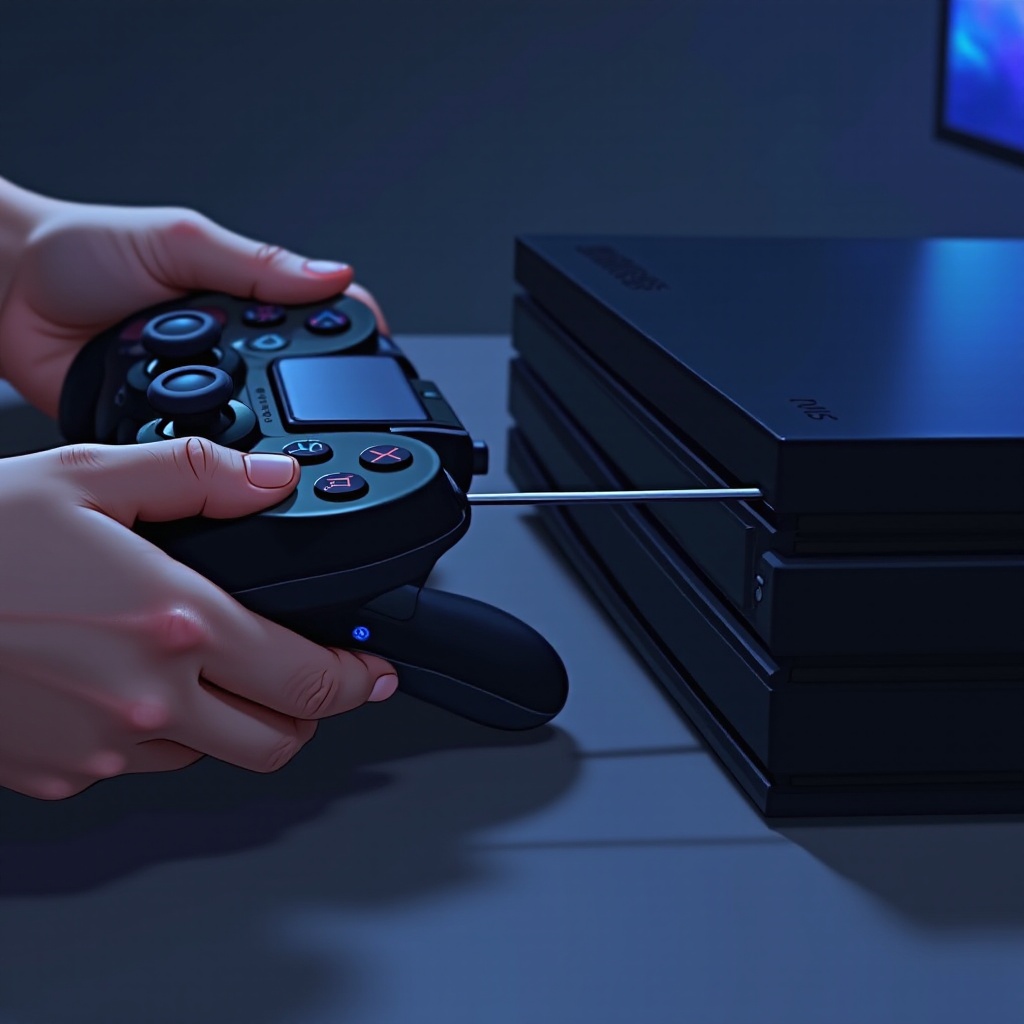
– Reset the Controller: On the back of the controller, locate and press the reset button with a small pin. Hold it for a few seconds, then attempt to pair it with your PS4 once more.
– Re-pair the Controller via USB Cable: Connect the controller to your PS4 using a USB cable. Once connected, press the PS button on the controller to re-sync it with your console.
Resetting and re-pairing the controller can often resolve connectivity issues, yet software related problems may still occur.
Software and System Solutions
Software glitches can hinder controller connections, so make sure everything is current:
– Update PS4 System Software: Head to the settings menu on your PS4, select ‘System Software Update,’ and confirm your system is up to date. Updating to the newest firmware can fix bugs impacting connectivity.
– Update Controller Firmware: Occasionally, controllers require firmware updates. Connect your controller to the internet via your console or a computer, and check for any pending updates to maintain peak performance.
Keeping your system and controller updated is essential for seamless connectivity.
Addressing Bluetooth Interference
Bluetooth interference can obstruct connections, causing controllers to fail in syncing with consoles. Mitigating this issue is vital:
– Identifying Interference Sources: Common culprits of Bluetooth interference include other wireless devices, microwaves, and certain building materials.
– How to Minimize Interference: Deactivate or distance yourself from other wireless devices while gaming. Alternatively, utilize a USB connection to ensure a stable connection, eliminating Bluetooth-related problems.
Being aware of potential interference sources can sustain connectivity.
Advanced Troubleshooting
If you still encounter issues, advanced troubleshooting methods may be needed:
– Reset the PS4 Console: Turn off the PS4 by holding the power button until you hear two beeps. This hard reset can sometimes eliminate glitches that softer resets cannot.
– Contact PlayStation Support: If problems persist, they may indicate a hardware fault. Reach out to PlayStation Support for professional assistance or consider visiting an authorized repair center.
Exploring advanced solutions can provide final resolutions for challenging connectivity issues.
Preventive Measures
Taking preventive measures can help avoid future disconnection hassles:
– Maintaining the Controller: Regularly clean your controller with a microfiber cloth to remove dust and debris.
– Regular Software Updates: Consistently check for updates for both the system and the controller to ensure you’re running the latest features and security enhancements.
Adopting preventive strategies helps maintain smooth gaming sessions.
Conclusion
To summarize, fixing a PlayStation controller’s connectivity to a PS4 doesn’t have to be daunting. From basic troubleshooting to advanced solutions, these tips should guide you in quickly restoring your gaming activities. Professional support is always an option if the issue persists.
Frequently Asked Questions
Why won’t my PS4 controller connect after a reset?
After resetting, ensure the controller is charged and your console is powered on. Re-pair the controller using a USB cable to establish the connection.
How do I resync my PS4 controller without a USB cable?
Use another working controller to navigate the PS4 settings, enabling Bluetooth to add the unsynced controller wirelessly.
Can outdated software cause connectivity issues?
Yes, outdated software can lead to bugs. Keep both your PS4 system and controller firmware updated to prevent such problems.