

 By
By Introduction
Routers are the backbone of your home network, powering your Wi-Fi connections and enabling seamless internet access. When your router isn’t working, it can be incredibly frustrating, interrupting both work and home activities. This comprehensive guide aims to help you diagnose and resolve common router issues efficiently. From preliminary checks to advanced troubleshooting, we’ll help you enhance your router’s performance to ensure a smooth and secure internet experience.

Diagnose Your Router Issues
Begin by diagnosing the root of the problem. Identifying whether the issue is simple or complex will guide the steps needed to restore your connection.
Check Power and Connections
- Ensure the router is powered on. Make sure the power cable is securely connected to both the router and the electrical outlet.
- Inspect all cables and connections. Confirm that the ethernet cables from your modem are correctly plugged into the router’s WAN port.
- Try a different outlet or power strip. This helps to eliminate the possibility of a faulty power supply.
Interpret Router Status Lights
The status lights on your router can give clues about its performance. Here’s how to understand them:
- Power Light: Should be steady. If not, the router might not be receiving power properly.
- Internet Light: A steady or blinking light signifies an active internet connection.
- Wireless Signal Light: Indicates that the router is broadcasting; if it’s off, the issue might be configuration-related.
Rule Out Modem and ISP Issues
Before concluding that the router is the problem, check if your modem or ISP might be at fault:
- Restart your modem by unplugging it, waiting a moment, and plugging it back in.
- Check for ISP service outages or maintenance by visiting your provider’s website or reaching out to their support.
- Directly connect a device to the modem to see if the internet works, which points to the router as the issue if the connection is fine.
Now that you’ve diagnosed the problem, we can look at solving specific router issues.
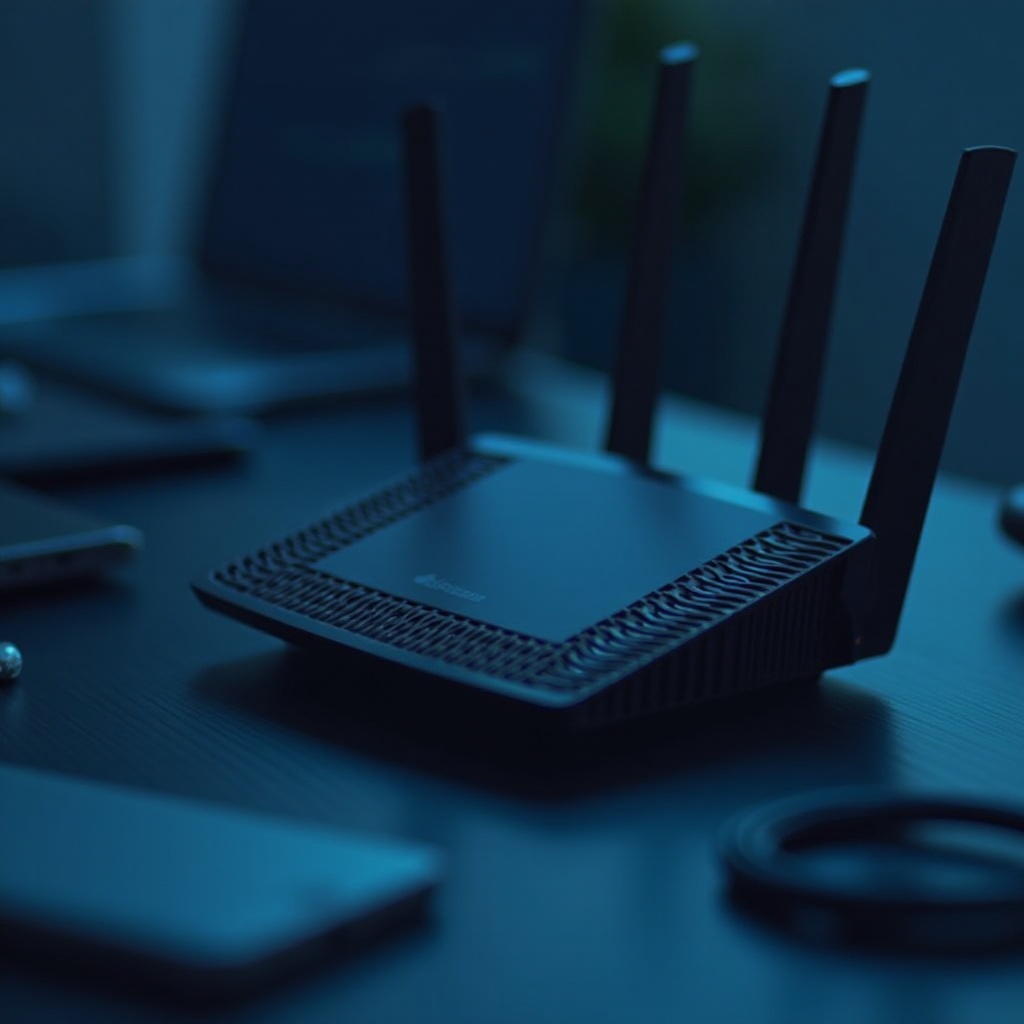
Common Router Problems and Solutions
Addressing these common problems can often quickly restore your connection.
No Internet Connection
- Restart the router by unplugging it for at least 30 seconds before reconnecting it.
- Verify router settings by logging into the admin panel using your router’s IP address in a browser. Ensure settings match your ISP’s configuration.
- Check for service outages by contacting your ISP to rule out a broader issue affecting your area.
Slow Internet Speeds
- Move closer to the router, which might help if a weak signal is the problem.
- Limit connected devices to reduce bandwidth usage and congestion.
- Optimize router channels using a Wi-Fi analyzer to find and switch to less crowded channels.
Intermittent Connectivity
- Minimize signal interference from devices like microwaves and cordless phones by relocating the router.
- Update network drivers on connected devices to ensure compatibility and performance.
- Check lease time settings in the router settings, possibly extending the DHCP lease time for better stability.
Now that common issues are addressed, we can explore advanced troubleshooting techniques if needed.
Advanced Troubleshooting Techniques
When basic solutions fail, delve deeper into your router’s settings for detailed fixes.
Access Router Settings
- Open a browser and enter your router’s IP address, usually found on the device or in the manual.
- Log in using admin credentials and change default passwords for enhanced security.
- Review and adjust configuration settings to ensure they align with your ISP’s requirements.
Update Router Firmware
Outdated firmware can hinder performance and security. To update it:
- Visit the manufacturer’s website to download the latest firmware for your model.
- Follow the upgrade instructions in your router settings under the firmware update section.
- Reboot the router after updating to apply changes effectively.
Perform a Factory Reset
When all else fails, a factory reset may help:
- Hold the reset button on the router, typically located at the back, for about 10 seconds.
- Reconfigure settings afterward since this process will erase current configurations. Be sure to note them beforehand for easy setup.
Deep technical adjustments can often resolve persistent issues and ensure your router performs at its best.

Enhancing Router Performance and Security
Improving your router’s long-term performance and security will prevent many future issues.
Optimize Router Placement
- Place your router in a central location, which can maximize coverage throughout your home.
- Keep it away from obstructions and appliances that can cause signal interference and degrade performance.
Secure Your Network
To safeguard your network from unauthorized access:
- Change the default SSID to hide your network type from potential intruders.
- Use a strong Wi-Fi password combining numbers, symbols, and varied letter cases.
- Enable WPA3 encryption for superior protection.
Use Quality of Service (QoS) Settings
Manage how your network allocates bandwidth with QoS settings:
- Prioritize bandwidth for essential devices and applications in your router’s administration panel.
- Set bandwidth limits to ensure no single device dominates your connection, maintaining fair access for others.
By focusing on these performance and security areas, you can ensure a stable, secure, and efficient network.
Conclusion
Dealing with router issues may seem daunting, but with a structured troubleshooting approach, you can swiftly restore connectivity. By following these steps, from basic checks to advanced settings enhancements, you can maintain consistent internet access and secure your network. Routine maintenance and timely updates are key to preventing future problems and keeping your connectivity seamless.
Frequently Asked Questions
Why does my router keep disconnecting?
Interference, outdated firmware, or too many devices can cause frequent disconnections. Minimize interference, update firmware, and manage devices for stability.
When should I replace my router?
Consider replacing your router if it is over five years old, can’t support newer devices, or frequently malfunctions despite troubleshooting efforts.
How can I boost my Wi-Fi signal?
Enhance your Wi-Fi signal by centrally placing your router, using signal boosters, and selecting optimal channels for broader coverage and stability.