

 By
By Introduction
HDMI ports are essential for connecting various devices to modern TVs, providing the best in audio and visual quality. When setting up an LG TV for the first time or when trying to attach new peripherals, locating the HDMI port can be daunting for some users. This guide aims to simplify that process, helping you both locate these ports and optimize their use.
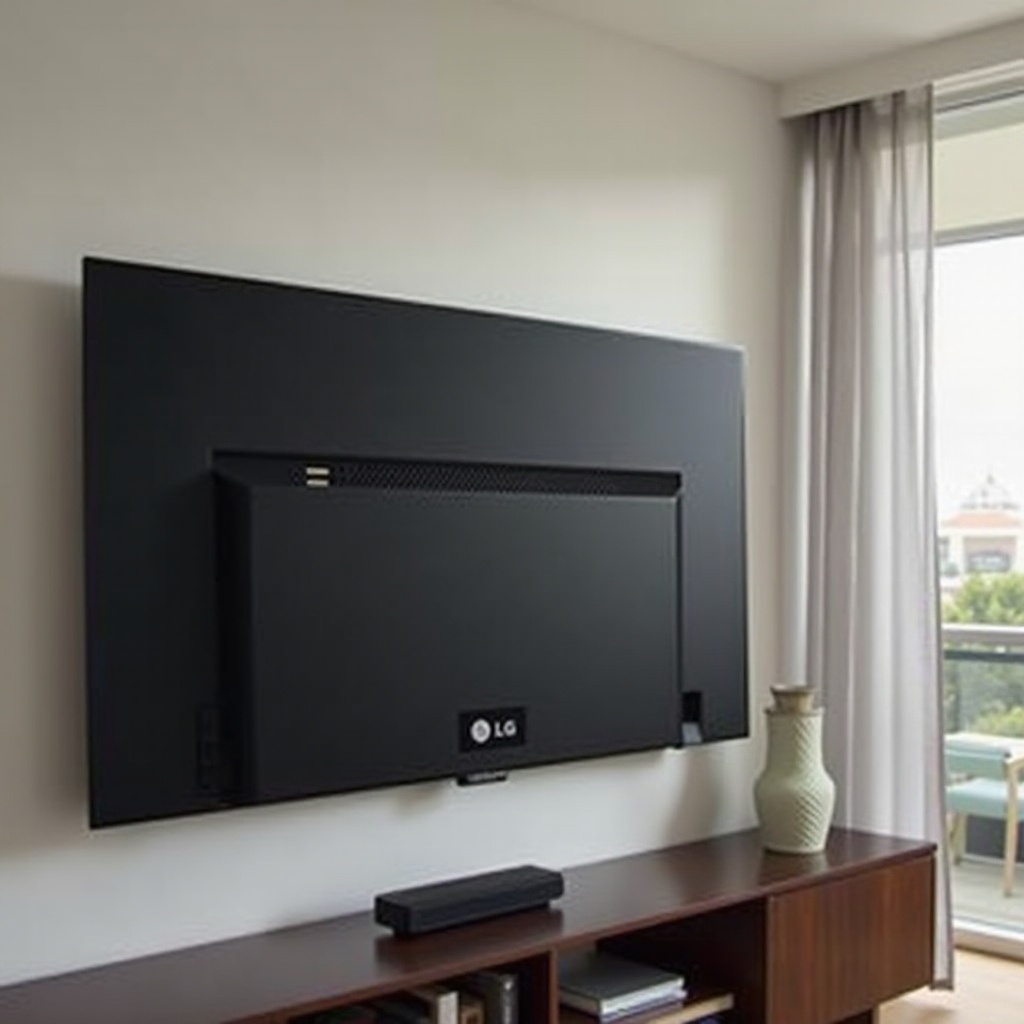
Understanding HDMI Ports on LG TVs
HDMI, or High-Definition Multimedia Interface, is a standard that revolutionized the way we connect digital devices, facilitating the transfer of high-resolution video and audio.
What is an HDMI Port? At its essence, an HDMI port is an interface used for the transmission of high-definition video and audio signals between devices. This port is found on numerous gadgets, from monitors to gaming consoles, providing a seamless connection for high-quality streaming and playback.
Importance of HDMI Ports in Modern TVs HDMI ports are crucial in modern LG TVs as they allow multiple device connections, whether for gaming, streaming, or playing Blu-ray discs. This versatility supports seamless integration into one’s home entertainment system, enhancing user convenience.
With a foundational understanding of HDMI’s role, the next step involves locating these ports, which varies by LG TV model.
Locating the HDMI Port on Different LG TV Models
The positioning of HDMI ports can differ across LG TV models, affecting how easily users can access them.
Common Locations for HDMI Ports Lower and mid-range models typically place HDMI ports on the back or sides, providing flexibility depending on installation circumstances. While back-panel ports often accommodate permanent setups, side ports offer easy access for temporary connections.
Variations Among LG TV Models Higher-end models, like the OLED series, incorporate additional ports to support more devices. These models often have a mix of rear and side ports to enhance accessibility and flexibility depending on user needs.
Once you know where to find the HDMI ports, the next logical step is setting them up for use.
Connecting Devices to Your LG TV HDMI Port
Connecting your devices correctly is crucial for ensuring the best video and audio performance from your television.
Step-by-Step Guide to Plugging in Devices:
- Find an available HDMI input on your TV.
- Connect one end of your HDMI cable to your device’s HDMI output.
- Plug the other end into the HDMI input on your TV.
- Power on both the TV and the device. This action allows your TV to recognize the new input.
Configuring Input Settings for Optimal Performance: Use your TV remote to navigate to the correct HDMI input. Access the ‘Input’ section in the settings and choose the HDMI input linked with your device. Correct configuration guarantees that the device delivers full audio and video quality potential to your TV.
Yet, even with the best setups, problems may arise, so it’s helpful to understand how to troubleshoot common HDMI issues.
Troubleshooting HDMI Connection Issues
While HDMI connections typically work smoothly, users may encounter some issues that require troubleshooting.
Common Connectivity Problems: Issues such as no signal, poor video quality, or lack of audio are common. These problems often stem from loose connections, faulty cables, or incorrect input settings.
Solutions for No Signal and Other Issues:
- Verify that the HDMI cable is snugly connected at both ends.
- Test with a different cable to eliminate the possibility of a defective one.
- Double-check the input settings to confirm the TV is on the correct HDMI input.
- Restart both your TV and the connected device, as this can often rectify connectivity glitches.
After ensuring everything is connected properly and functioning, you can explore ways to maximize resolution and audio output through your HDMI ports.
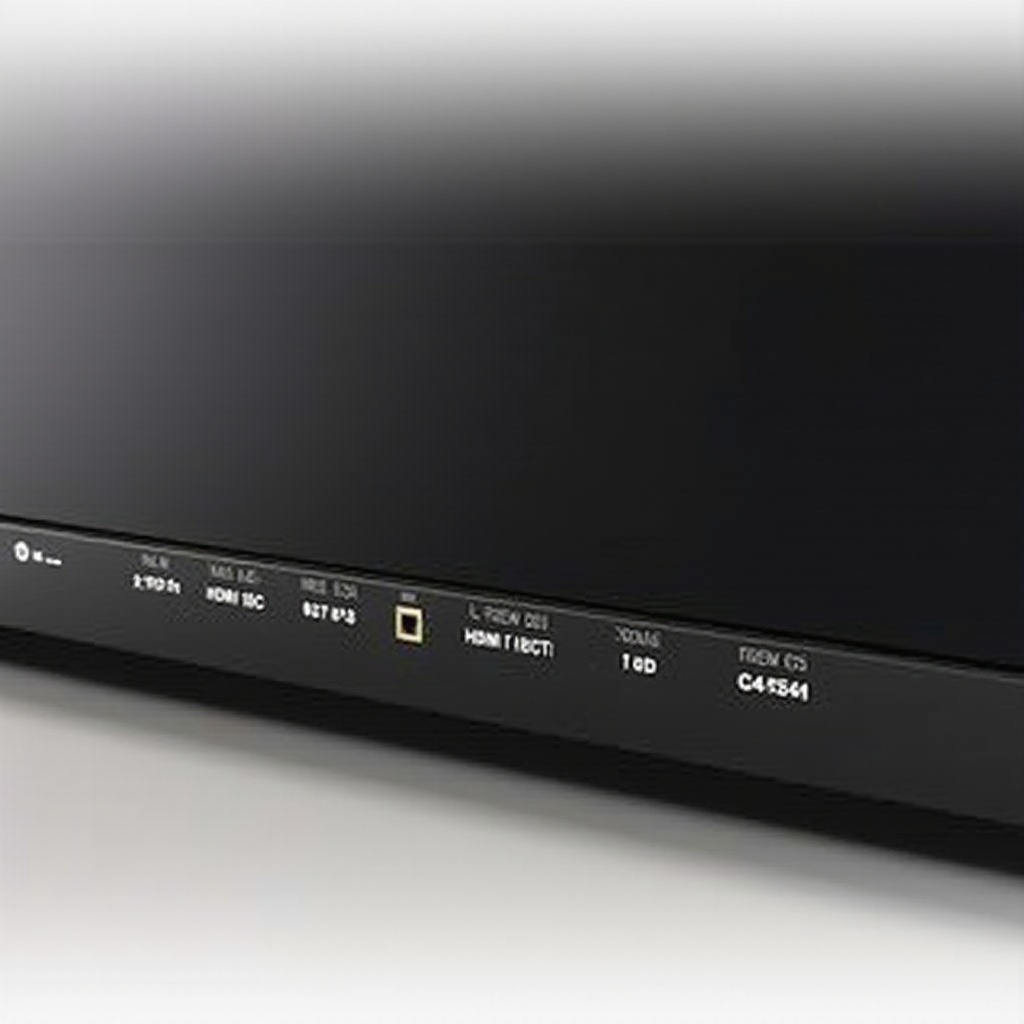
Maximizing Your LG TV Viewing Experience with HDMI
To truly capitalize on HDMI technology, ensure your setup delivers the highest possible quality for both image and sound.
Enhancing Picture Quality: Adjust the resolution settings of connected devices to match those that HDMI supports, such as 1080p or 4K. This ensures that the image quality aligns with your TV’s resolution capabilities.
Improving Audio Through HDMI ARC: If your LG TV and audio system support HDMI ARC (Audio Return Channel), you can streamline audio transmission, reducing cable clutter by eliminating the need for separate audio cables.
With these guidelines in mind, let’s recap the advantages and practical applications of HDMI technology in modern LG TVs.
Conclusion
HDMI ports on LG TVs provide extensive connectivity features that enhance the versatility and effectiveness of home entertainment systems. By learning how to locate, connect, and troubleshoot these ports, you unlock high-quality audio-visual capabilities, enriching your TV viewing experience. Whether you’re diving into the latest blockbuster or in an intense gaming session, leveraging HDMI ports effectively is key to maximizing your entertainment setup.
Frequently Asked Questions
Can I add more HDMI ports to my LG TV?
Yes, you can use an HDMI switch or splitter to add more HDMI inputs, allowing you to connect multiple devices seamlessly.
What should I do if my HDMI port is not working?
Check all cable connections and verify your input settings. If the problem persists, try a different cable or contact LG support for further assistance.
How do I identify HDMI 2.1 ports on my LG TV?
Refer to your TV’s manual or product specifications. HDMI 2.1 ports are often labeled or listed on the manufacturer’s website for compatible models.